WordPress
WooCommerce Shortcodes: Full List, Examples and Checkout Fixes
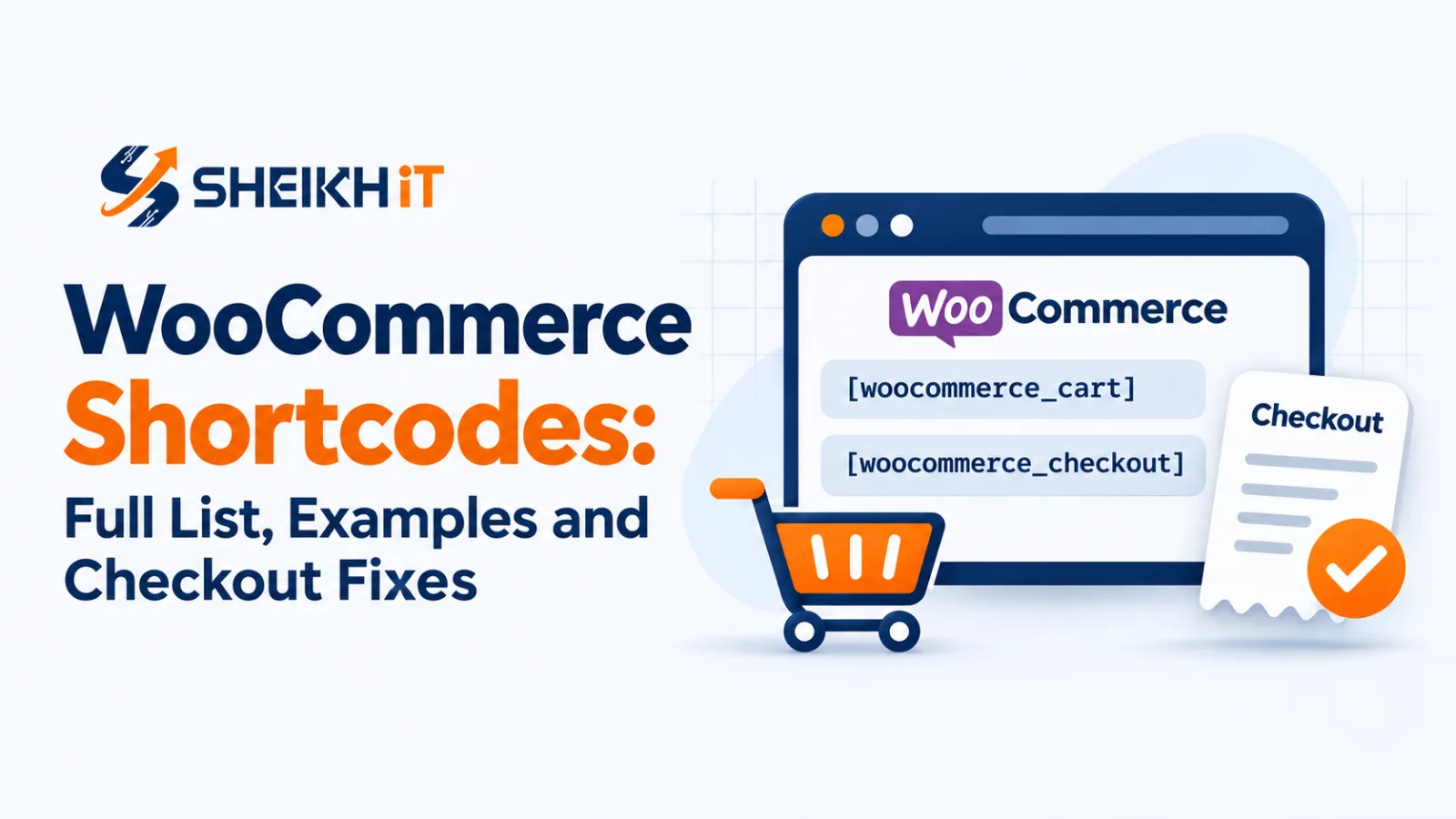
You want a "Best Sellers" row on your homepage, an Eid offer page that shows only discounted panjabis, or a checkout that works with your courier plugin again. The fastest tool for all three is the same: WooCommerce shortcodes, the small codes in square brackets that drop store content into any page.
The problem is that most lists online are long, copied from each other, and skip the part that actually breaks stores: the switch from the classic checkout to the Checkout block. This guide gives you the shortcodes that matter in 2026, examples you can paste today, and the fixes we use when a shortcode or checkout stops working.
What are WooCommerce shortcodes?
WooCommerce shortcodes are short text codes, such as [products limit="8"], that WordPress replaces with live store content when the page loads. You paste one into a page, and visitors see a product grid, a cart, a checkout form or a login area instead of the code.
In the block editor, add a Shortcode block and paste the code into it. In the Classic Editor you can paste it straight into the content. In Elementor, use the Shortcode widget. Pasting it into a normal paragraph usually works too, but the Shortcode block is the safe habit.
WooCommerce shortcodes list: the 11 core shortcodes
WooCommerce core documents these shortcodes. Anything else you see online comes from a theme or plugin.
Page shortcodes
[woocommerce_cart]: shows the cart page.[woocommerce_checkout]: shows the full checkout form, including billing fields and payment methods.[woocommerce_my_account]: shows the customer login, registration and account dashboard.[woocommerce_order_tracking]: shows a form where a customer can look up an order.
Product shortcodes
[products]: the main one; shows products filtered by category, tag, SKU, sale status and more.[product_page id="99"]: shows a full single product page inside another page (you can usesku="..."instead of the ID).[product_category]: shows products from one category.[product_categories]: shows category tiles.[add_to_cart id="99"]: shows a price and an add-to-cart button for one product.[add_to_cart_url id="99"]: outputs only the add-to-cart link, useful for a custom button.[shop_messages]: shows WooCommerce notices (such as "added to cart") on pages that are not WooCommerce pages.
Old shortcodes like [sale_products], [best_selling_products] and [featured_products] are replaced by attributes on [products], so use [products] for new pages.
WooCommerce product shortcode: copy-ready examples
The [products] shortcode does most of the work. Its key attributes: limit (how many), columns (default 4), orderby (title, date, id, menu_order, popularity, rand, rating), order (ASC or DESC), category and tag (slugs, comma-separated), ids or skus, visibility (use featured for featured products), and paginate="true" to add page numbers.
Examples for a typical Bangladeshi online shop:
- New arrivals:
[products limit="8" columns="4" orderby="date" order="DESC"] - Best sellers on the homepage:
[products limit="4" columns="4" best_selling="true"] - Eid or 11.11 sale page:
[products limit="12" columns="4" on_sale="true" paginate="true"] - Featured items:
[products limit="4" columns="2" visibility="featured"] - One category only:
[products category="panjabi" limit="8" columns="4"] - Products in both of two categories:
[products category="panjabi, eid-collection" cat_operator="AND"] - Hand-picked products for an ad landing page:
[products ids="101, 102, 105" columns="3"]
Two rules save a lot of confusion. First, on_sale, best_selling and top_rated cannot be combined with each other, so pick one. Second, category needs the category slug (for example eid-collection), not the display name. You will find the slug under Products → Categories.
WooCommerce shortcode for a specific category
Use [products category="your-slug"] when you want product cards from one category, and [product_categories] when you want clickable category tiles (for example Men, Women, Kids) on the homepage.
WooCommerce checkout shortcode: block or classic?
The WooCommerce checkout shortcode is [woocommerce_checkout]. Since WooCommerce 8.3 (November 2023), new stores get the Cart and Checkout blocks by default instead of the shortcodes, so if your checkout page shows no shortcode at all, that is why.
Blocks are WooCommerce's recommended direction and are built for conversion. But WooCommerce's own documentation also notes that the shortcode versions can have better compatibility with extensions. In Bangladesh that matters, because many stores rely on custom checkout fields, district and thana dropdowns, courier plugins, or local payment gateways that were written for the classic checkout. When one of those plugins does not support blocks, you see missing fields, a gateway that never appears, or the message "There are no payment methods available".
How to switch the checkout back to the classic shortcode:
- Go to Pages → All Pages and edit the Checkout page. (With a block theme, use Appearance → Editor → Pages → Checkout.)
- Open the List View and select the Checkout block.
- Click the Transform button at the left of the block toolbar.
- Choose "Classic Shortcode" and click Save.
- Repeat the same steps for the Cart page. The cart and checkout blocks work as a pair, so revert both.
Then place a real test order with cash on delivery and with each online payment method you offer. If you run Facebook ads, also confirm the Purchase event still fires after the change; our Facebook Pixel setup guide shows how to test it.
WooCommerce cart and my account shortcodes
The cart shortcode is [woocommerce_cart] and the account shortcode is [woocommerce_my_account]. WooCommerce adds both pages automatically during setup, so you only need them if a page was deleted or rebuilt by a page builder.
If a page goes missing, create a new page, add the shortcode, then go to WooCommerce → Settings → Advanced and assign it as the Cart, Checkout or My Account page. A page with the right shortcode but the wrong assignment is a common reason for broken cart and checkout links.
The order tracking form, [woocommerce_order_tracking], is worth adding for COD-heavy shops. Customers enter their order ID and billing email to see the status, which can cut down "where is my order?" messages on your Facebook page.
WooCommerce shortcodes not working? Check these first
When a shortcode shows as plain text or shows nothing, it is usually one of these:
- Curly quotes. Codes copied from WhatsApp, Word or some websites turn " into curly quotes, which WordPress cannot read. Retype the quotes in the editor.
- Wrong place. The code sits in a Code block, a heading or a text field that does not process shortcodes. Move it to a Shortcode block or widget.
- Wrong slug.
category="Eid Collection"fails;category="eid-collection"works. - Hidden products. A product set to "Hidden" under Catalog visibility will not appear in
[products]. - Caching. A cache plugin or your host may be serving an old version of the page. Clear the cache after changes.
- Plugin conflict. Switch to a default theme and disable non-essential plugins on a staging copy to find the cause.
When shortcodes are not enough
Shortcodes are great for showing what WooCommerce already knows. They cannot add logic it does not have: a delivery charge that changes by district, a checkout field that appears only for Dhaka orders, an order form built for Facebook ad traffic, or syncing orders to your courier or inventory software.
That is where a small, purpose-built plugin is cleaner than stacking five general plugins that slow the site down. Our custom WooCommerce plugin development team builds exactly these pieces, and if the store itself needs rebuilding, see our website development service. New to building a store at all? Start with our step-by-step guide on how to create a website.
Conclusion
You only need a handful of WooCommerce shortcodes: [products] with the right attributes for your product sections, the four page shortcodes for cart, checkout, account and tracking, and the Transform option when a plugin needs the classic checkout. Test every change with a real order before you send ad traffic to it.
Checkout broken, or need a feature no plugin offers? Get a free audit or message us on WhatsApp.